WiFi channel scanner Every channel rated, and the clearest one named.
WiFiy counts the networks overlapping each channel around you, weighs how strong they are and rates every channel one to five stars.
Your router shares the air with every network next door.
WiFi networks on the same or overlapping channels have to take turns. In a flat or a busy street, your router may be sharing its channel with a dozen neighbours, and every device on every one of those networks waits for a gap before it can send.
Routers pick a channel when they start and often never change it, even when the neighbourhood fills up. A channel scanner shows you which channels are crowded where you actually are, so you can move to a quieter one in a couple of minutes.
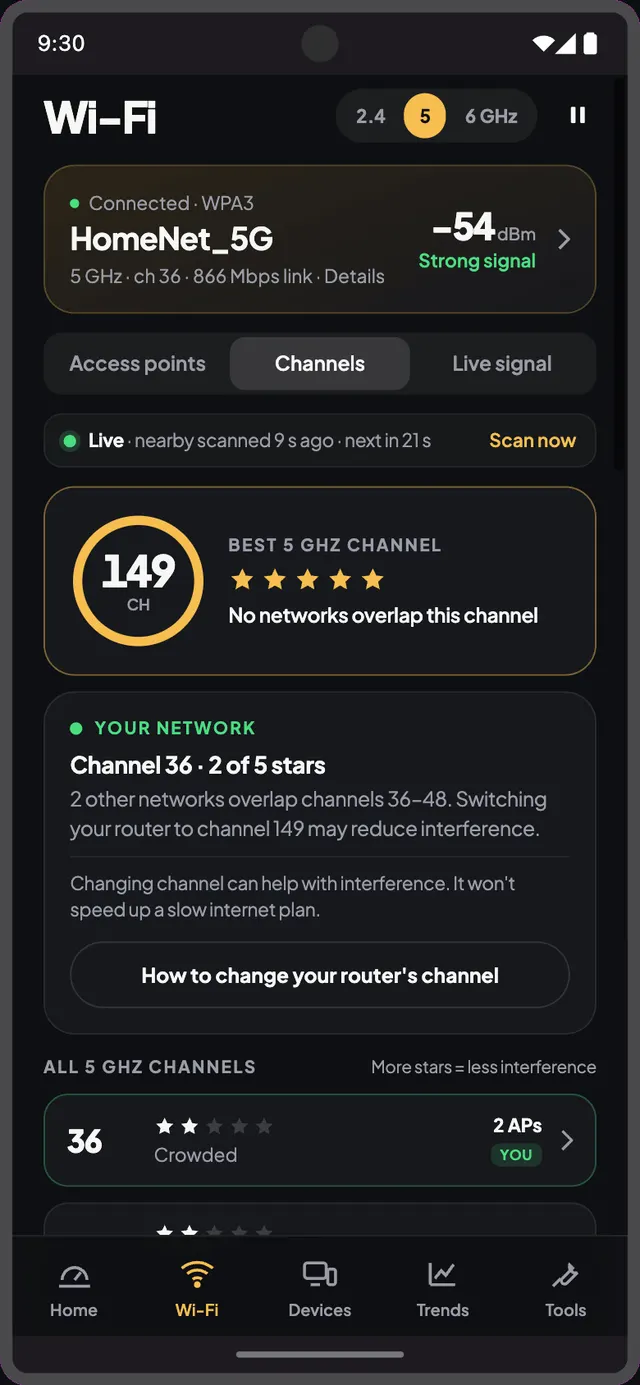
Three steps, about a minute.
Open the WiFiy tab
Go to Channels. WiFiy scans the networks around you and groups them by the channels they cover on 2.4, 5 and 6 GHz.
Read the stars
Each channel gets one to five stars and the number of networks on it. BEST marks the clearest, YOU marks your current channel and DFS marks channels with radar rules.
Switch on the router
WiFiy shows step by step where the channel setting usually lives in your router admin, and opens the admin page in one tap.
What WiFiy shows you.
What the scan shows
- Stars and the number of networks on each channel
- 2.4, 5 and 6 GHz where your phone supports them
- BEST, YOU and DFS tags
How the rating works
- Counts networks whose channels overlap, not just exact matches
- Weighs strong neighbours more than faint ones
- Honest: it’s a guide, not a promise of more speed
After you switch
- Run a speed test on the new channel
- Trends shows the change as a step, or no step
- Nearby networks refresh about every 30 seconds on Android
What each phone allows.
Android
Full channel rating on 2.4, 5 and 6 GHz, with every nearby access point.
iPhone
Not available. Apple doesn’t let any app see channels or nearby networks; use an Android phone, or your router’s own app, to check channels.
Questions people ask
A person replies, usually within a couple of hours. The promise is one working day.
01What does a WiFi channel scanner show?
Which channels the networks around you are using, how many overlap each channel and how strong they are. WiFiy turns that into a one-to-five-star rating for every channel and names the clearest one.
02Which 2.4 GHz channel is best?
Usually 1, 6 or 11, because they are the only 2.4 GHz channels that don’t overlap each other. Pick whichever of the three has the fewest strong neighbours where you are.
03Will changing the channel make my WiFi faster?
It can, when your channel is crowded, because devices spend less time waiting. It can’t fix a weak signal or a slow plan, so WiFiy treats the rating as a guide rather than a promise.
04Can I scan WiFi channels on iPhone?
No app can. Apple doesn’t let apps read channels or nearby networks on iPhone. WiFiy’s channel rating works on Android.
05What does DFS mean on a channel?
DFS channels are 5 GHz channels that routers may only use if they check for radar first, so a router can move off them without warning. They are often quiet, which is why WiFiy tags them rather than hiding them.
Scan your WiFi in thirty seconds.
Free on Android and iPhone. No account, no card.
Test your speed in the browserFree · no install · 15 s