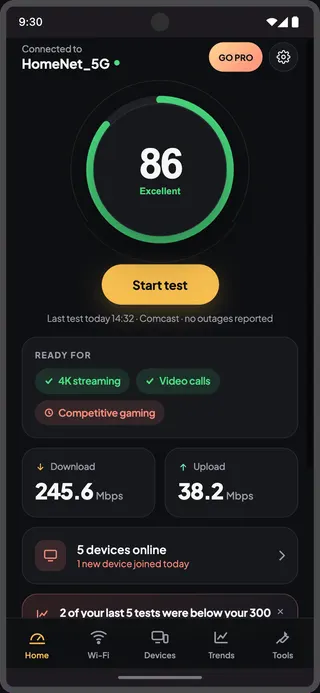
At 9 pm the flat upstairs starts streaming, and your video call freezes mid-sentence.
The best WiFi channel is the one the fewest strong neighbors share. On 2.4 GHz, pick channel 1, 6 or 11, because those three don't overlap. On 5 GHz, start with 36, 40, 44 or 48, which skip radar checks. Scan at the time things go wrong, change one setting, then test again.
In a rental you can't move walls or run a cable, but you can move your router to a quieter channel. To see how crowded yours is, WiFiy rates every channel on Android in about 30 seconds. It's free, with no account.
What makes one WiFi channel better than another?
A channel is the slice of radio band your router talks on. When nearby networks use the same slice, or one that overlaps it, they take turns sending data, and every device waits longer. Fewer neighbors, and weaker ones, mean less waiting.
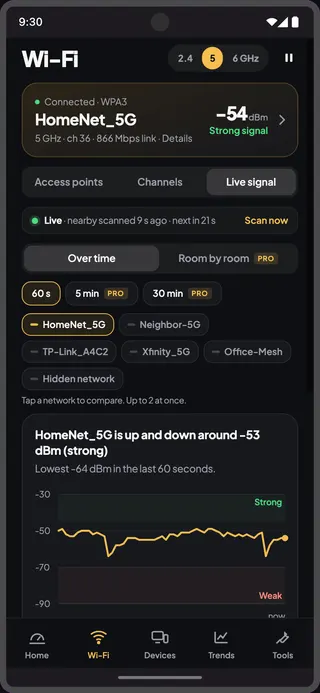
Strength matters as much as count. One neighbor at −55 dBm on your channel can hurt more than five faint ones at −85 dBm. (dBm measures signal strength; numbers closer to zero are stronger.)
| Band | Channels to try first | Why | Watch out for |
|---|---|---|---|
| 2.4 GHz | 1, 6, 11 | The only three that don't overlap at 20 MHz | Busiest band in any apartment block |
| 5 GHz | 36, 40, 44, 48 | No radar check needed | Fades faster through walls |
| 5 GHz (DFS) | 52-144 | Often empty | Can pause for 1-10 minutes after a reboot or radar |
| 6 GHz | 5, 21, 37, 53 (and every 16th after) | Devices look on these first | Needs a WiFi 6E or WiFi 7 router and device |
Exact channel lists depend on your country. Only choose from the channels your router offers once its country setting is correct.
What is the best WiFi channel for 2.4 GHz?
Use 1, 6 or 11, whichever has the fewest strong neighbors. Channels on 2.4 GHz sit 5 MHz apart but are about 20 MHz wide, so channel 3 spills into both 1 and 6. Picking an in-between channel puts you in two crowds at once.
Keep the channel width at 20 MHz. Apple's router guidance recommends 20 MHz on 2.4 GHz, because 40 MHz can cause reliability problems near other networks and Bluetooth devices.
In an apartment block, all three channels may be busy. Pick the one whose loudest neighbor is weakest. In much of Europe and Asia, channel 13 is also allowed. In the US, keep to 1-11.

Which 5 GHz channel is best?
Start with 36, 40, 44 or 48. These sit in the lower 5 GHz band, where routers don't have to check for radar before using them. Signals at 5 GHz also travel less far through walls, so fewer neighbors reach you.
Apple suggests leaving the 5 GHz channel width on Auto. In a crowded building, 80 MHz can hold up better than 160 MHz, because a wider channel overlaps more neighbors.
What is a DFS channel, and should you use it?
A DFS (Dynamic Frequency Selection) channel shares the 5 GHz band with weather and military radar. Your router must listen for radar before using one, and leave if it hears it. ASUS notes that 5 GHz can take 1-10 minutes to come back after a reboot on a DFS channel.
DFS channels are often the emptiest on the list. If your 5 GHz network drops for a minute or two with no clear cause, though, switch to 36-48 and see whether the drops stop.
Should you leave your router on Auto?
Start with Auto. Many routers choose a channel when they start up, and some only switch again once interference crosses a set limit. A channel that was quiet at startup can be the busiest in the building by evening.
If a scan at peak time shows your channel rated poorly, set a fixed channel and test again. Some mesh systems and ISP-supplied routers hide the channel setting. If yours does, check the router maker's app or ask your provider.
WiFiy shows which channel your router is on and how many networks share it, tagged YOU, BEST and DFS. One scan settles the Auto question.
How to Find the Best WiFi Channel With WiFiy
- Open WiFiy on Android and go to the WiFiy tab. Allow location while the app is open. Android requires it before any app can read WiFi data, and WiFiy explains why before it asks.
- Read Channel rating at the time things go wrong. Each channel on 2.4, 5 and 6 GHz gets 1-5 stars, with the number of overlapping networks. Android lets an app scan only four times every two minutes, so give the list about 30 seconds to fill.
- Change one thing. Follow the in-app guide to set the BEST channel. The path is typically Router admin (often 192.168.1.1) → Wireless → 2.4 GHz → Channel, but menus differ by maker.
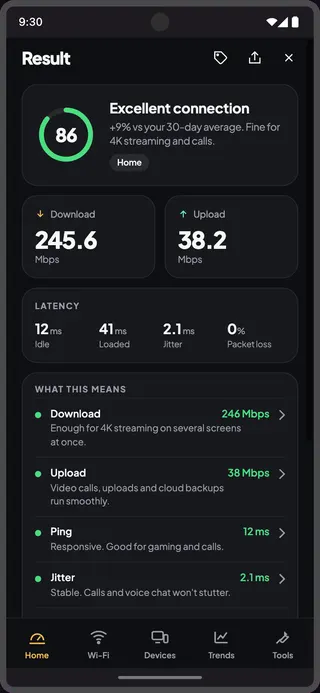
- Test again. Run a speed test from Home in the room that struggled, then check Trends the next evening. A better rating is a guide, not a promise of more speed.

On iPhone: iOS doesn't let any app read channels or nearby networks. Check your channel in the router admin page or the maker's app, then use WiFiy's speed test and Trends on iPhone to see whether the change helped.
Without any app:
- Run a speed test about 1 m from the router before and after. If speed is fine there, the problem is coverage or channel, not your provider's line.
- Lift the router off the floor onto a shelf. That alone can gain around 10 dBm. If one room stays weak after that, read why WiFi is slow in one room.
It takes about thirty seconds and costs nothing. Get WiFiy free on Google Play or the App Store.
Your data stays yours. No account, no card. WiFiy asks for location only while the app is open, because Android and iOS require it to read WiFi data, and it never stores your location. Your test history stays on your phone, and a person answers support email.
The quickest fix you can make without moving a wall
The best WiFi channel changes as your neighbors change. Scan when things go wrong, pick the clearest channel your router allows, and test again the next evening. WiFiy does the scan in about thirty seconds, free and with no account. Tap the Google Play or App Store badge to start, or browse more fixes on the WiFiy blog.