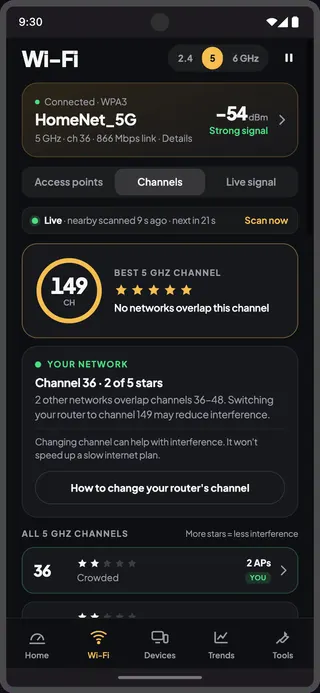
The best place to put your router is high, central and in the open: on a shelf or a wall mount near the middle of your home, away from thick walls, metal and large appliances. WiFi spreads out from the router in every direction, so a router in a corner sends half its signal outside, and one on the floor behind the TV sends most of it into furniture.
The four rules
- Central. Put it as close to the middle of the home as the cable allows. The rooms furthest from the router lose first, so shorten the longest distance.
- High. A shelf or the top of a bookcase beats the floor. Signal travels better above furniture and people.
- In the open. Not in a cupboard, TV cabinet or behind a sofa. Doors and cabinet backs all cost signal.
- Away from interference. Keep it clear of microwaves, cordless phone bases, baby monitors, metal shelving, mirrors and fish tanks.
Google’s placement guide for its own routers says the same: an elevated, central spot with a clear path, avoiding thick walls, heavy furniture, concrete and brick (Google Nest Help).
What blocks WiFi most
- Light: plasterboard walls, wooden doors, glass.
- Medium: brick, thick wooden furniture, floors between storeys.
- Heavy: concrete, stone, metal (including foil-backed insulation and radiators), mirrors, water (fish tanks, and people).
5 GHz fades sooner through walls than 2.4 GHz, so a room that is fine on 2.4 GHz may be weak on 5 GHz. See 2.4 GHz vs 5 GHz WiFi.
When you can’t move the router far
Usually the router has to stay near where the internet line enters the home. You still have options:
- Lift it. Even moving it from the floor to a shelf at the same spot often makes a visible difference in the far rooms.
- Use a longer cable. A longer Ethernet cable between the provider’s box and your router, if they are separate, can move the router several metres towards the middle.
- Angle the antennas. If the router has external antennas, set some vertical and some horizontal; devices hold their antennas at different angles.
Measure before and after
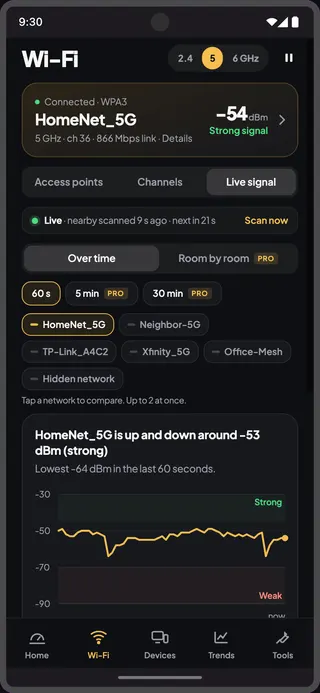
Placement advice is general; your walls are specific. Measure first so you know whether a move helped. On Android, walk the home with WiFiy’s Live signal and note the dBm in the rooms that matter: the desk, the sofa, the bedroom. Better than −60 dBm is good; around −70 dBm is borderline. Then move the router and walk the same spots again. Room check in WiFiy Pro saves the spots so you compare exactly the same places.
On iPhone, which can’t read signal strength, run a speed test in each room before and after instead.
Multiple floors and large homes
On two floors, a router on the upper floor of a hallway or landing often reaches both better than one in a downstairs corner. If one router still can’t cover the home, a mesh system is the next step. Google suggests mesh points about two to three rooms apart, one per floor in a two-storey home, and placing a point halfway towards a weak area rather than inside it (Google Nest Help). See mesh WiFi vs extender before you buy.
Wire what doesn’t move
Every device on WiFi shares the same airtime, and a TV streaming 4K or a console downloading an update takes a big share of it. If a TV, console or desktop computer sits near the router, connect it with an Ethernet cable. It gets a faster, steadier connection, and the WiFi has more room for phones and laptops that do move around.
For devices further away, powerline adapters (which carry the network over your electrical wiring) or a mesh point with Ethernet ports can do the same job without running a long cable.
Check the router itself
Placement can only do so much for an old router. If yours only supports older WiFi standards, has no 5 GHz band or needs restarting every few days, no shelf will fix that. Check its admin page or app for firmware updates first; if it is many years old, a newer router in a good spot is often the single biggest upgrade a home can make.