If your WiFi keeps disconnecting, first work out whether it is one device or all of them. One device dropping out points to that device: its settings, power saving or a saved network that has gone stale. Every device dropping at once points to the router, its placement or interference. The checks below go in that order, and most people find the cause in the first three.
One device or all of them?
- Only one phone or laptop drops: start with steps 1 and 2.
- Everything drops at the same moment: start with steps 3 and 4.
- Drops only in one room: it is signal strength; go to step 4.
1. Restart, forget and rejoin
Restart the device, then forget the network and join it again with the password. This clears a saved connection that has gone out of step with the router, which is common after a router update or password change. Google’s help for Pixel and Android phones lists the same steps (Pixel Phone Help), and so does Apple’s for iPhone (Apple Support).
Also make sure the device’s date and time are set automatically; a wrong clock can break secure connections.
2. Check the settings that switch you away
Phones try to be clever about bad WiFi, and that can look like disconnecting:
- Switching to mobile data: on iPhone, Apple notes that a setting which moves you to cellular data when WiFi is poor can make WiFi seem to drop (Apple Support). Many Android phones have a similar “switch to mobile data” option in WiFi settings.
- Battery saving: aggressive power saving can turn WiFi off while the screen is off.
- VPN or security apps: Apple suggests temporarily uninstalling them to test, since they can interrupt connections.
3. Restart and update the router
If every device drops together, unplug the router (and modem) for about 30 seconds and plug them back in. Then check the router’s admin page or app for a firmware update; updates often fix stability bugs. If the drops line up with the router’s lights going out, the router itself is restarting, which can mean overheating or a failing power supply. Give it space and air, out of cupboards.
4. Check the signal and the channel
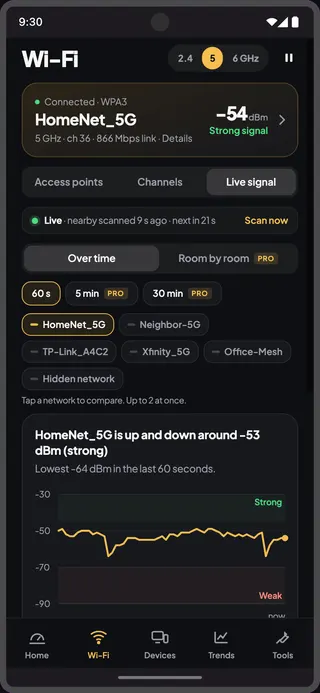
A device on the edge of coverage connects, loses the signal, reconnects and loses it again. On Android, watch the signal in WiFiy’s Live signal while you use the device where it drops: if it sits around −75 to −80 dBm, the signal is the problem, not a fault. WiFiy also logs drops and channel changes on the graph as they happen, so you can see when they occur.
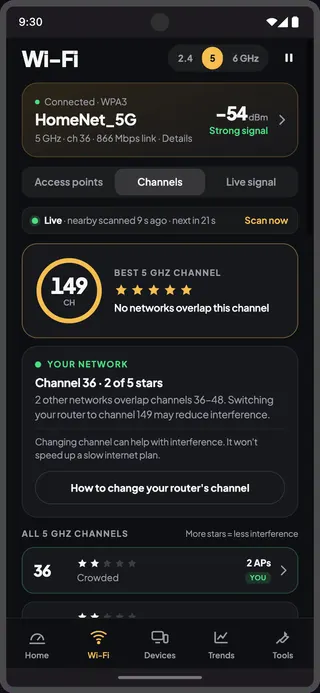
Interference causes drops too. A crowded channel, or a router on a DFS channel that has to move when it detects radar, can kick devices off briefly. If drops are frequent on a DFS channel, choose a non-DFS one:
See how to change your WiFi channel for the full steps, and what WiFi signal strength in dBm means for the numbers.
5. Split the bands if one device keeps struggling
Many routers show 2.4 GHz and 5 GHz as one network name and move devices between them (band steering or Smart Connect). Some devices handle the switch badly and drop each time. Giving each band its own name in the router settings lets you keep a stubborn device on one band.
6. Reset network settings as a last resort
On the device that keeps dropping, resetting network settings clears all saved WiFi networks, VPN and network configuration. Apple recommends it only when other fixes fail (Apple Support); on Pixel phones it is under System › Reset options (Pixel Phone Help). Have your WiFi passwords ready.
If nothing helps
If the drops affect every device, including wired ones, and the router’s internet light goes out, the problem is the line. Note the times and contact your provider; a record of when it happens makes the call much shorter.
Keep a short log
Note when the drops happen for a few days: the time, which devices and what was going on. Patterns point straight to the cause. Drops at the same time every night can be a router’s scheduled restart or update; drops when the microwave runs point to interference on 2.4 GHz; drops that only affect one laptop point to that laptop.