An unknown device on your WiFi is almost always one of yours: a smart plug, TV, printer or doorbell that shows up under the name of the company that made its WiFi chip, or a guest’s phone. To be sure, match each device by its maker and when it first appeared, name the ones you know, and if one is left over, change your WiFi password. That removes everything at once, and only the devices you reconnect come back.
Why devices show up with strange names
Most smart-home gadgets don’t announce a friendly name. What your router or app sees instead is the device’s network address and the maker of its network chip, looked up from the first half of its MAC address. A smart bulb might appear as “Espressif”, a TV as “Realtek” or “MediaTek”, and a phone with private addressing turned on as a random string with no maker at all.
Phones and tablets also use a private (randomised) MAC address for each network by default on recent Android and iPhone versions, which is why the same phone can look like a new device after a reset.
1. List every device on your network
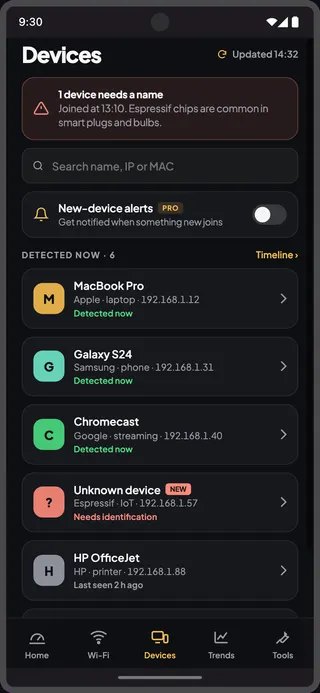
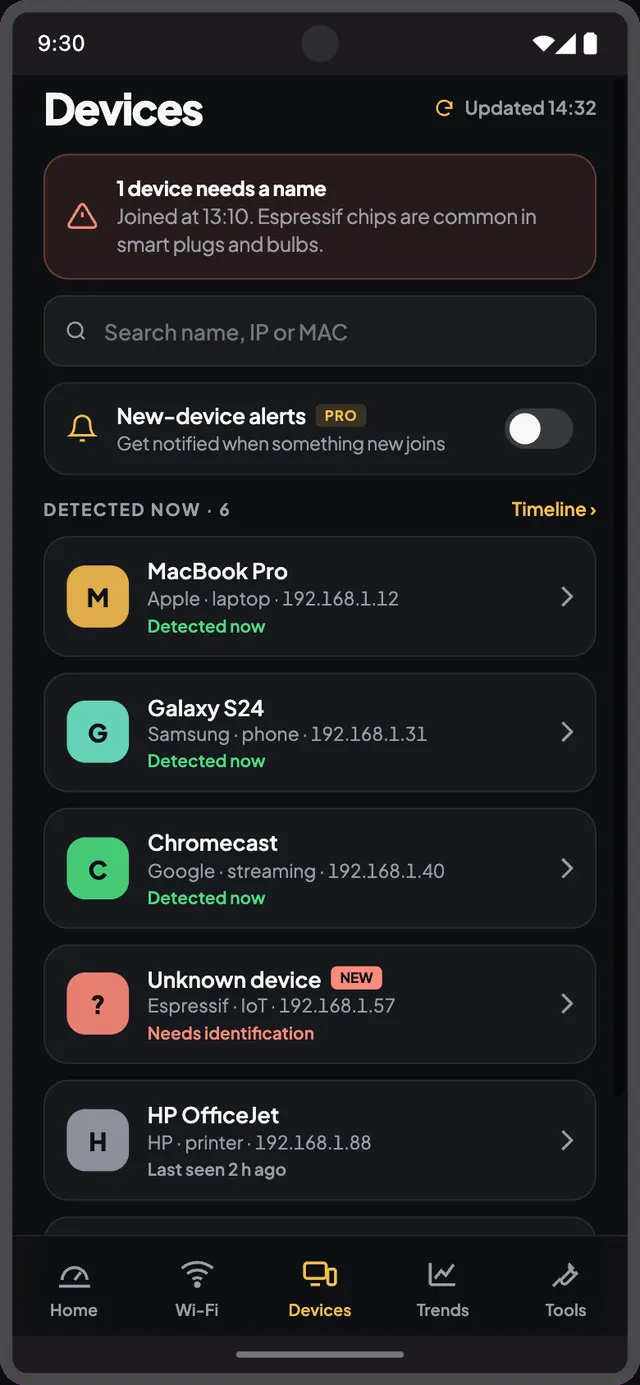
Your router’s admin page or app has a list of connected devices, often called “Attached devices” or “Clients”. WiFiy’s Devices tab shows the same picture from your phone: every device it finds, with its name, maker and IP address, what is online now and when the others were last seen. Anything it can’t name is marked “Needs identification”, not “intruder”; most turn out to be yours.
2. Match them to what you own
- Check the maker. Tap a device to see the maker. Chip makers such as Espressif, Tuya, Realtek or MediaTek usually mean a smart-home gadget or TV.
- Check when it first appeared. A device first seen the day you set up a new speaker is probably the speaker.
- Turn things off one at a time. Switch off a suspect gadget and see which entry disappears. Tedious, but conclusive.
- Name what you identify. Give each device a name and type. Next time, only genuinely new arrivals will stand out.
3. If one is still unknown, change the WiFi password
Changing the WiFi password disconnects every device. Reconnect your own, and anything that doesn’t belong stays off. It is the simplest and most reliable way to remove an unwanted device, because a blocked device can often come back with a different address.
The FTC’s advice for securing a home network covers the rest of the job: use WPA3 or WPA2 encryption, change the router’s admin password (which is different from the WiFi password) from its default, keep the firmware updated, and turn off remote management and WPS if you don’t use them (FTC: How to secure your home WiFi). CISA gives the same guidance (CISA).
4. Give guests their own network
Most routers can run a guest network: separate WiFi that gets internet access but can’t see your own devices. Give visitors that one, and your main password stays private. A WiFi QR code for the guest network lets them join without you reading out the password.
Keep an eye on new arrivals
Once your devices are named, a new entry is easy to spot. WiFiy Pro can alert you when a device joins, checking about every 15 minutes on Android and periodically on iPhone. Remember what a device list can and can’t do: it shows who is connected, not what they are doing, and it can’t read anyone’s traffic.
For the basics of finding the list in the first place, see how to see who is connected to your WiFi.
Devices that often look unknown
- Smart plugs, bulbs and sensors: often listed under the chip maker, such as Espressif or Tuya.
- TVs and streaming sticks: may show a chip maker, a model number or nothing at all.
- Printers: join the WiFi once and stay connected for years, long after everyone has forgotten about them.
- Robot vacuums, doorbells and cameras: online all the time, usually with a cryptic name.
- Game consoles and set-top boxes: sometimes appear under the console maker, sometimes under a network chip maker.
- Phones with private addresses: show no maker at all and a random-looking address, and can appear as a new device after a reset.
- Mesh points and extenders: part of your own network, listed like any other device.
If a device is online at night when everything you own is off, or it appears and disappears at times that match no one in your home, that is the one worth acting on.