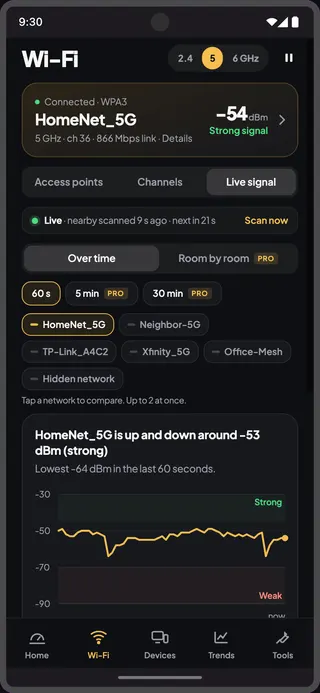
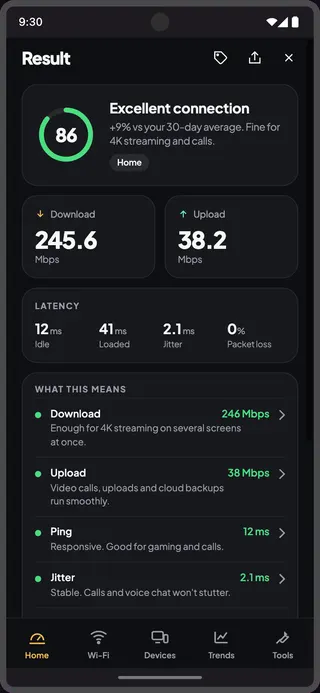
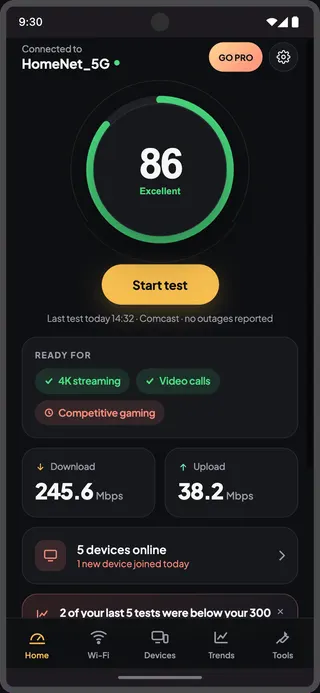
To see who is connected to your WiFi, open your router’s admin page (often 192.168.1.1 or 192.168.0.1) or your router’s app. Find the list called Connected devices, Clients or DHCP clients. A scanner app on your phone shows the same list with maker names. Most unfamiliar entries turn out to be your own gadgets.
Picture it: the family says the WiFi is slow. You open the router app and it shows 19 devices, but you can only count 11. Here’s how to read that list, name what’s on it, and deal calmly with whatever is left.
How many devices are normally on home WiFi?
More than most people guess. A 2025 NETGEAR and Bitdefender report put the average household at 22 connected devices. Phones and laptops are the obvious ones. The rest sit quietly in the background: TVs, smart plugs, speakers, doorbells, printers, even the washing machine. itwire
So a long list is not a warning sign on its own. What matters is whether you can put a name to each entry. Here’s what each column on the list tells you.
| What you see | What it is | How useful it is |
|---|---|---|
| Device name | The name the device reports, e.g. “Galaxy-S24” or “ESP_3A1F” | Often enough; cheap smart plugs report chip names |
| IP address | The local address your router handed out, e.g. 192.168.1.23 | Changes over time; good for matching, not naming |
| MAC address | The hardware ID a device uses on WiFi | Modern phones use a private one, so it may not match the box |
| Maker | Looked up from the MAC address | Points to a brand, unless the address is private |
| Last seen | When the router last heard from it | Old entries are often devices that already left |
Method 1: Check your router’s admin page (no app needed)
Your router keeps the master list, so start there. The path below is typical; menus differ by maker and firmware.
- Connect to your WiFi and type the router’s address into a browser. It’s on the sticker on the router, often 192.168.1.1 or 192.168.0.1.
- Sign in with the router’s admin password. This is also on the sticker unless someone changed it, and it is not your WiFi password.
- Open the device list: Connected devices, Attached devices, Client list or DHCP clients.
Mesh systems often show the list only in their app. Routers supplied by your internet provider may hide some menus, so check your provider’s help pages.

While you’re signed in, check that admin password. The FTC’s home WiFi guide explains that the admin password is separate from the WiFi password, and anyone who gets into the admin settings can change your WiFi password and undo your other security steps. If the sticker password still works, change it. ftc
Method 2: Check from your phone
A network scanner app lists the same devices without signing in to the router. It asks the network which addresses the answer, then looks up the maker for each one. This works on Android and iPhone alike, because it doesn’t need signal or channel data.
The catch: a scan only sees devices that are awake. A sleeping laptop or a guest’s phone that has already left won’t show up. Apps that keep a history with “last seen” times fill that gap.
WiFiy’s Devices tab does both. It lists everything on your network with name, maker and IP, and shows when each device was last seen. It’s free on Android and iPhone, with no account.
Why is there a device I don’t recognise?
Usually it’s yours. The most common cause is not a neighbour. It’s your own phone using a private address.
To protect your privacy, phones no longer use their hardware address on every network.
- iPhone: devices on iOS 14 or later can identify themselves to each WiFi network with a unique, random address. apple
- Android: on Android 10 or higher, phones use a randomised MAC address by default. android
The maker lookup then fails, so your own phone can show as unknown. Sources: Apple’s private Wi-Fi address guide and Android’s MAC randomisation documentation.
Why the same phone shows up twice
On password-protected networks (WPA2 or WPA3), iPhones use a Fixed private address by default. A new address can still appear if the phone forgets your network and rejoins later. Each new address looks like a new device, so one phone can sit on the list twice: an old entry and a current one. apple
What to do about a device you can’t identify
Work through these steps in order. Each one rules something out.
- Read the maker. “Espressif” or “Tuya” is usually a smart plug or bulb. “Amazon” or “Google” is often a speaker or streaming stick.
- Match your own phones. On iPhone, go to Settings → Wi-Fi → tap ⓘ next to your network and read the Wi-Fi Address. On Android, it’s in the network details (the path varies by phone). Compare it with the list.
- Switch things off one at a time and watch which entry goes offline.
- Still unnamed? Change your WiFi password from the router admin page, then reconnect your own devices. Anything you don’t reconnect drops off.
- Tighten the basics. Use WPA2 or WPA3 security, change the admin password, and put visitors on a guest network.

Skip MAC filtering as a fix. Apple notes that networks using MAC address filtering can stop devices with private addresses from joining. apple
How to Check Who’s on Your WiFi With WiFiy
- Open WiFiy and tap the Devices tab. You’ll see every device with its name, maker, IP, and whether it’s online now or when it was last seen.
- Search by name, IP or MAC to find your own phones fast.
- Name and type the ones you know. WiFiy remembers them, so next time only new devices stand out.
- Anything left is marked “needs identification.” Use the steps above. The free Router admin tool in the Tools tab opens your router’s page in one tap if you need to change the password.
- Want to know when something new joins? New-device alerts are part of Pro, which has a 3-day free trial. Android checks about every 15 minutes; iPhone checks periodically.
It takes about thirty seconds and costs nothing. Get WiFiy free: tap the Google Play or App Store badge.
Google Play badge · App Store badge
What WiFiy can and can’t see
No account, no card. Your device names and test history stay on your phone. WiFiy lists devices but cannot read their traffic. Location is used only while the app is open, and only because Android and iOS require it for WiFi data. A real person answers support email.
The short version
A long device list is normal. Name what you know, match your phones by their private address, and change the WiFi password if something stays unnamed. Then check again in a week. Get WiFiy free on Google Play or the App Store, no account needed.