Your phone shows full bars in the hallway, two in the back bedroom, and the video call freezes anyway. The bars hide the detail. The number behind them doesn't.
Quick answer: Android measures WiFi signal in dBm, a negative number where closer to zero is stronger. Most phones' settings show only a word like "Good," so you need a WiFi analyzer app to see the number. Better than −60 dBm is good, around −70 dBm is borderline, and −80 dBm usually fails calls.
Below: where to look on your phone, what each reading means, and why the number moves. Your own number is one scan away. WiFiy shows live signal in dBm on Android, free and with no account.
What Is a Good WiFi Signal Strength in dBm?
A good WiFi signal strength is −60 dBm or stronger. dBm means decibel-milliwatts, a scale for very small amounts of radio power. The numbers are negative, so −55 dBm is stronger than −75 dBm.
The scale isn't linear. Every 10 dB step means ten times less power, so −70 dBm carries about a tenth of the power of −60 dBm. That's why a few numbers can feel like a big change.
| Reading | Verdict | What usually works |
|---|---|---|
| Better than −60 dBm | Good | Video calls, HD and 4K streaming, gaming |
| −60 to −70 dBm | Getting borderline | Browsing and HD video; calls may stutter near −70 |
| −70 to −80 dBm | Borderline to weak | Email and light browsing; calls and 4K struggle |
| −80 dBm or weaker | Failing | Drops, timeouts, pages that never load |
Other guides draw these lines a few dB apart. Many use −67 dBm as the target for smooth calls.
How to Check WiFi Signal Strength on Android
To check WiFi signal strength on Android, start with the status-bar icon, then Settings, then an analyzer app. Only the app shows dBm on most phones.
- The WiFi icon. On a Pixel, a fuller WiFi icon means a stronger signal. It's a rough guide with only a few steps.
- Settings. A typical path is Settings → Network & internet → Internet, then tap the gear next to your network. On Samsung phones it's usually Settings → Connections → Wi-Fi → gear. Most phones show a word here (Excellent, Good, Fair or Poor), not a number. Menus differ by phone maker and Android version.
- A WiFi analyzer app. The app reads the same signal Android uses and shows it in dBm. To list nearby networks, Android requires location permission and location turned on. That rule comes from Android, not the app.

Picture a two-bedroom flat: Settings says "Good" in both rooms. An app shows −52 dBm in the lounge and −71 dBm in the back bedroom. Only one of those rooms will hold a steady call.
Why Does My dBm Reading Jump Around?
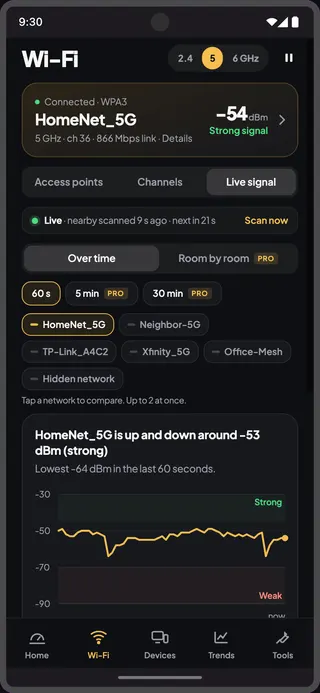
A dBm reading moves a few points every second, and that's normal. People walking past, doors closing and your own hand on the phone all change it. Read the average over half a minute, not one moment.
Nearby networks update more slowly for a different reason. Since Android 9, each foreground app can scan four times in two minutes, per the same Android documentation. So a list of nearby networks refreshes about every 30 seconds in any analyzer app. The network you're connected to updates more often, which is why a live signal graph moves faster than the list.
Why Is 5 GHz Weaker Than 2.4 GHz in the Same Spot?
The 5 GHz band usually reads a few dB weaker than 2.4 GHz at the same spot, because higher frequencies lose more strength through walls and floors [VERIFY: cite router maker help page]. In return, 5 GHz carries more speed when the signal is strong.
So in a far room, 2.4 GHz may hold a steadier connection. Next to the router, 5 GHz is usually faster.
Simple Fixes to Try Before Buying Anything
If your reading is weak, try one change at a time and measure again in the same spot:
- Lift the router. Moving it from the floor to a shelf can gain around 10 dBm.
- Clear the path. Fridges, mirrors and fish tanks absorb signal. Move the router away from them.
- Test next to the router. If speed is slow even there, the problem is the line or the router, not the signal.
Still weak in one room? Our guide to why WiFi is slow in one room walks through the next steps.
How to Check Your WiFi Signal Strength With WiFiy
WiFiy shows your signal in dBm on Android, with a plain verdict and one next step.
- Get WiFiy free. There's no account to make.
- Open the WiFiy tab. Allow location while the app is open; WiFiy explains why before it asks. Why this permission is needed.
- Find your network. It shows live dBm, signal bars and a 30-second line.
- Walk to the problem room, wait 30 seconds, and note the number. For a longer look, Live signal runs 60 seconds free.
- Change one thing, such as router height. Then test again and check Trends to see whether it helped.
Want to compare every room? Room check on Pro saves signal spot by spot. Pro has a 3-day free trial, and the core check stays free.

On iPhone: iOS doesn't let apps read WiFi signal strength. WiFiy on iPhone shows router response time in ms, speed against your plan, and the devices on your network.
It takes about thirty seconds and costs nothing. Get WiFiy free on Google Play or the App Store.
Your data stays yours. No account and no card. Location is used only while the app is open, because Android and iOS require it for WiFi data; WiFiy never reads GPS or stores location. Your test history stays on your phone. A person answers support email.
Know Your Number, Then Fix One Thing
Signal bars are a hint. The dBm number tells you whether a room can hold a call. Aim for −60 dBm or better, change one thing at a time, and measure again.
Get WiFiy free on Google Play or the App Store, with no account. Or test your speed in the browser first, no install. It runs on M-Lab servers, which publish each test with your IP address.